You upload a product render you already approved, write "make the sneaker spin dramatically," and the model adds a whole second sneaker, changes the sole's color, and swings the camera like a drone stunt. The image survived; the intent didn't. This is the classic image-to-video failure in 2026 — and the fix is almost never a longer prompt.
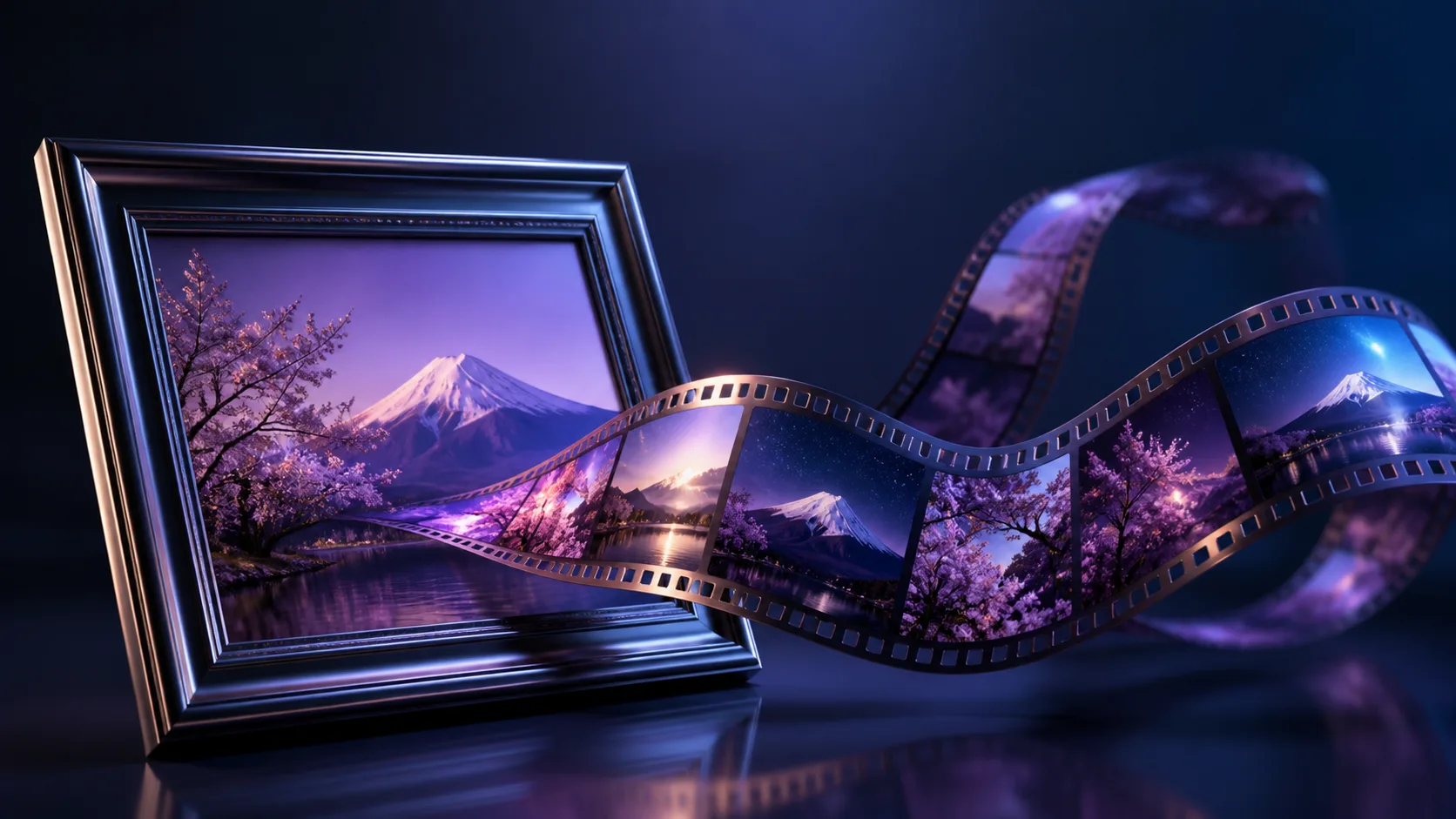
Image-to-video starts from a frame you already trust, which makes it the right tool for product shots, editorial art, and any locked composition. It also shifts the failure modes: instead of inventing a subject, the model now has to keep one, so motion becomes the real negotiation. This guide is based on hands-on workflow testing with the Wan-family generator in Wan 3 AI, cross-checked against official Wan materials. The naming matters: "Wan 3" is this product's workflow label, not an officially released model — Alibaba Cloud's public list still shows Wan 2.x as of August 2, 2026, so always confirm the underlying Wan-family model in the interface. After reading, you'll know how to prep an image that survives animation, write a motion-only prompt, and review a clip with a checklist that tells you whether the source or the motion was at fault.
Prepare the anchor image first
The single biggest quality lever in image-to-video is the input image, and most people skip it. Four preparation rules:
- One focal subject. A busy frame gives the model many things to preserve and confuse. If there is no clear subject, there is no stable reference.
- Enough edge detail. Sharp silhouettes survive motion better than soft, blurry masses. A clean subject boundary tells the model what to keep.
- No tiny critical text. Small words in a logo or label will warp the moment anything moves. If the text must survive, keep it large and centered, or plan to re-add it in post.
- Crop to the delivery ratio. The generator composes relative to the frame; a 4:3 image uploaded for a 16:9 clip will force the model to guess what to add on the sides. Crop before upload so nothing gets invented.
The rights check belongs in this step too: if the image contains a person, a logo, or a character you don't own, you need permission — animating it does not give you the rights.
Prompt motion, not a new image
In image-to-video the prompt is a motion instruction set, not a re-description of the scene. If you re-describe the product, you invite the model to re-design it. The reliable pattern is:
[preserve the composition] + [one camera move] + [one physical action] + [stop: no new objects]
Example for a poster: "Preserve the source composition; slow push-in; the paper edges lift in a light breeze; no new objects." Notice what's absent: no new colors, no new environment, no second subject. Everything the image already contains is off the table by default — your prompt only adds change. If you want to dig into how each motion word lands, the prompt guide breaks the template down slot by slot with examples.
Two technical points worth internalizing. First, camera moves (push-in, dolly, tilt) are usually the safest motion to ask for, because they move the viewer, not the content. Physical deformation — fabric, hair, liquids — is where stability goes to die, so start with camera motion and add physical motion only when the anchor holds. Second, motion scale matters: a request like "gently, subtly" is not precise. Use amplitude words tied to the subject — "the fabric shifts a few centimeters," "a light breeze lifts the corner" — so the model has a concrete range to hit.
Review with a practical checklist
A clip can look impressive and still be wrong. Review against five checks, in this order:
- Identity — is it still the same object from the source image?
- Geometry — did any rigid shape (frames, soles, bottles) bend?
- Background continuity — does the environment stay consistent, or did the model invent a new wall?
- Motion direction — does everything move the way your prompt said?
- Usable first and last frames — will the clip actually cut into an edit? AI clips that start or end mid-motion are the ones editors silently reject.
Grade the clip against the source image, not against how "cinematic" it looks. If it looks great but the product changed, it's a failure for product work.
The failure-mapping table
When a review fails, blame the right layer before rerunning:
| Failure | Likely cause | Fix |
|---|---|---|
| Subject identity changes | Input frame is busy or low-contrast | Clean up the source: one subject, sharp edges |
| Geometry bends (frames, bottles, faces) | Physical motion too aggressive | Reduce action amplitude; use camera motion instead |
| Model invents new background | Aspect mismatch or vague prompt | Crop to ratio first; add "preserve the background" |
| Motion looks wrong or reversed | Ambiguous action words | Name the direction and range explicitly |
| Everything is a blur | Both camera and physical motion at once | One motion type per render |
The rule of thumb that summarizes all of it: one motion per render. Camera motion first, physical motion second, never both at full strength on the first pass.
Motion intensity: the decision framework
| Goal | Start with | Escalate when |
|---|---|---|
| Product or architecture hero | Slow push-in only | The frame stays stable across two renders |
| Fabric, hair, water | Gentle physical motion, no camera | Identity holds at higher amplitude |
| Brand asset reuse | Camera motion + "preserve composition" | Two consecutive renders pass all five checks |
| Quick mood test | Any motion, short duration | — |
For reusable assets, the winning workflow is: approve a still once, generate several low-risk motion passes from that same image, and keep the versions that pass the checklist as your library. That is how you get consistent motion vocabulary across a campaign instead of five unrelated clips.
Why this beats "prompt harder"
Pain point: when a clip warps, teams rerun with a longer, more emphatic prompt — and the model still changes the product, because the conflict was never in the words. Many guides never mention the input image at all, even though it is the dominant variable.
Our added value: this workflow isolates the cause before the rerun. You prepare the frame, write motion-only prompts, and grade against a five-point checklist that tells you whether the source, the motion intensity, or the prompt conflict was at fault. That turns image-to-video from guesswork into a repeatable pipeline you can reuse on every asset. Try an image-led draft, and once a still passes, keep it as the anchor for every clip that needs to match it — the text-to-video guide explains when going back to text is the cheaper option.
FAQ
Can image-to-video animate a person realistically? It can preserve a face better than text alone, but identity still drifts under aggressive motion, and animating a real person's face needs their consent. Keep motion gentle for any identifiable person.
Why does the model add things that weren't in my image? Usually an aspect-ratio mismatch (the model fills unseen space) or a prompt that re-describes the scene. Crop to ratio and stop describing the image.
How do I make a logo stay sharp in a moving clip? Keep it large and centered, minimize physical motion, and re-add the logo as an overlay in an editor like Premiere Pro rather than asking the model to render it perfectly.
What's the cheapest way to test if my image works? Generate the shortest clip your interface allows with a single slow camera move. If the anchor survives that, it will survive longer renders.
Responsible Use
An animatable image is also an image that can mislead. Don't generate motion clips of real events, people, or products to imply they did something they didn't — and confirm you own or have license to the source image before animating logos or likenesses. Keep provenance metadata (C2PA-style, where exposed) attached instead of stripping it, and check your distribution channel's AI-content disclosure rules before publishing.
Start with one approved still
Take a single image you already trust, crop it to your delivery ratio, and run one 5-second clip with only a slow push-in. Grade it against the five-point checklist. If it passes, you have an anchor worth building a library on; if it fails, fix the source frame, not the prompt.
Open the Wan 3 AI generator and animate your first still today — and check how credits and plans scale when you move from tests to a full asset library.
Sources
- Alibaba Cloud Model Studio — official platform and API documentation for Wan-family image-to-video pipelines.
- Alibaba Cloud model updates — official Wan-series release status; supports the "only Wan 2.x as of August 2, 2026" claim.
- Wan2.1 GitHub repository — official project resources describing Wan-family image-to-video capabilities.
- Wan-AI GitHub organization — official code and model-family location.
- Wan-AI on Hugging Face — official model cards and weights for input-conditioning behavior.
- Wan research paper (arXiv) — technical background on image-conditioned video generation.
- Adobe Premiere Pro — editing context for the overlay and cut-together workflow described in this guide.
- C2PA — synthetic-media provenance standard referenced in Responsible Use.
- NIST AI Risk Management Framework — governance context for responsible use of generative video.
Source note: statements about the Wan family reference Alibaba Cloud's official release listings and Wan-AI GitHub/Hugging Face materials as of August 2, 2026; workflow observations come from hands-on testing in the Wan 3 AI browser generator and are reproducible with the same source image, prompt, and settings.